Coming soon to the Microsoft Store
A Downloads organiser for Windows.
Your Downloads folder, sorted by itself.
FoldAway moves each new download into a folder for its kind, after a wait you set. PDFs go with PDFs, pictures with pictures.
- Never goes online
- No account
- Undo on every file
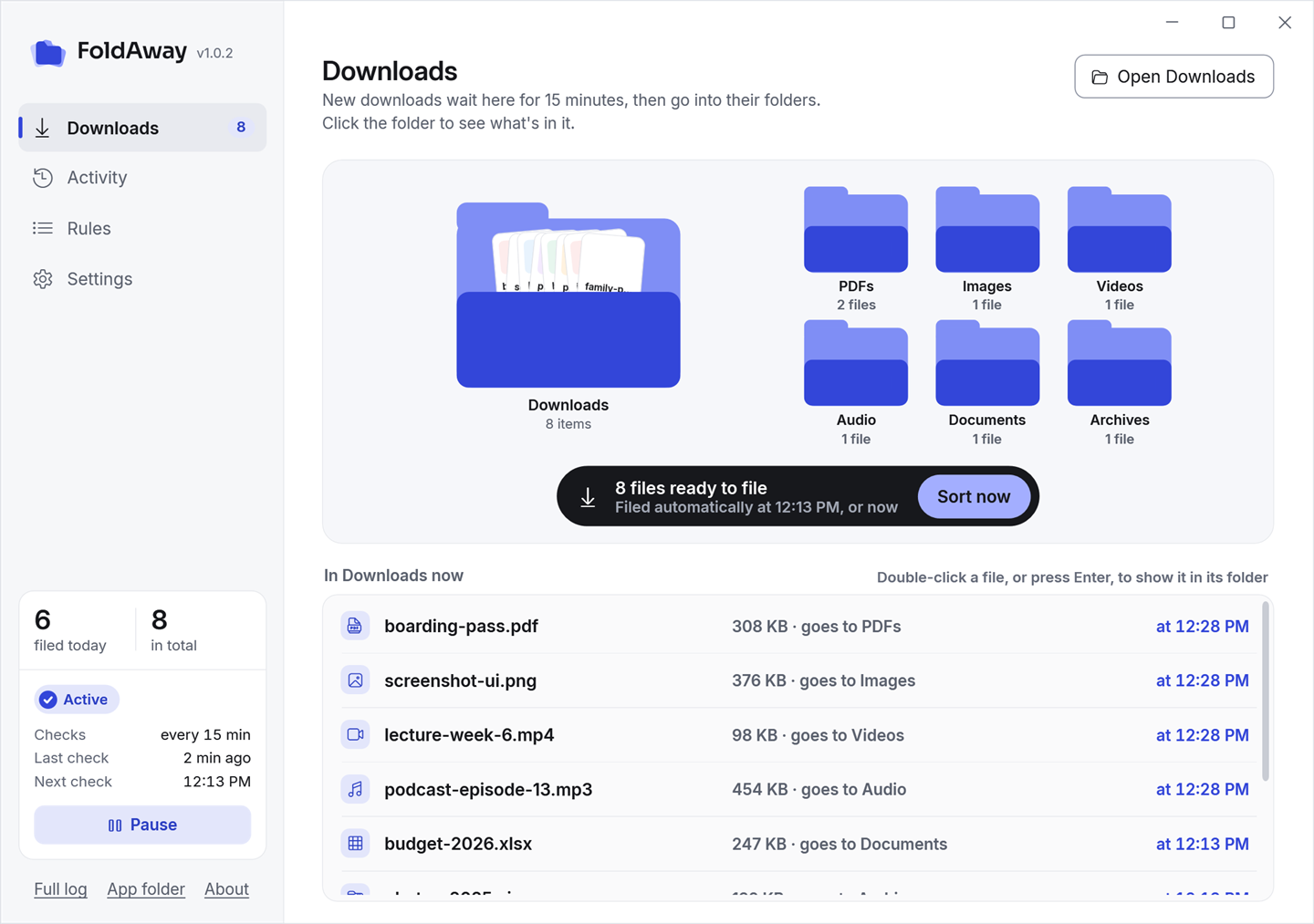
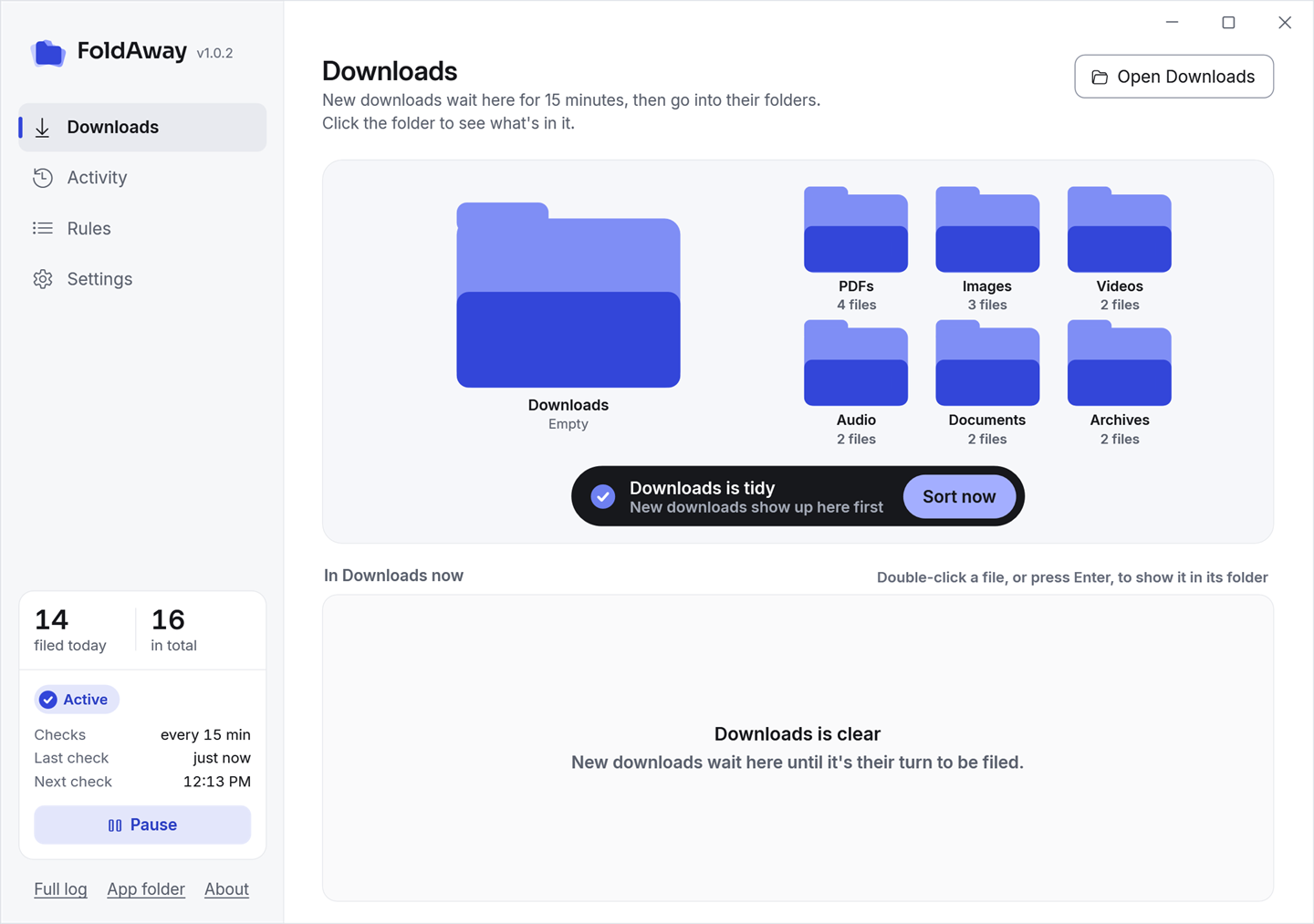
FoldAway puts each new download in a folder for its kind, inside Downloads.
Downloads
Downloads is tidy
- PDFs
- Images
- Videos
- Audio
- Documents
- Archives
- Installers
These are sample files. FoldAway does the same with your real downloads, on your PC.
It works by itself.
Filed after a wait you set.
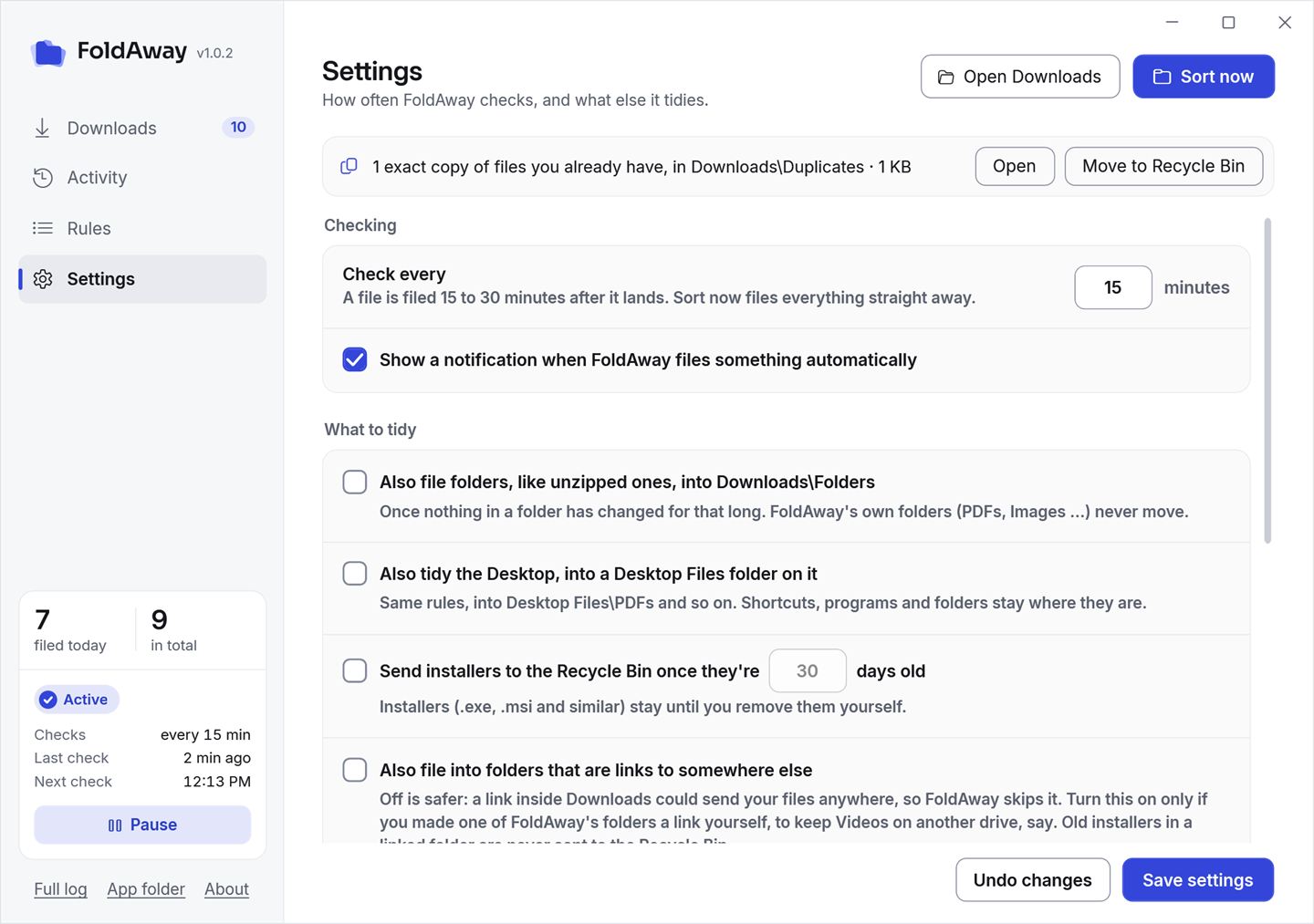
A new download stays put for a while, so it is where you expect it while you still need it. Then FoldAway moves it into its folder and tells you what moved. The wait starts at 15 minutes, and you can set it anywhere from 1 minute to 24 hours.
- A wait you set
- Files by type or name
- Tells you what moved
- Undo
- Sort now
- Pause
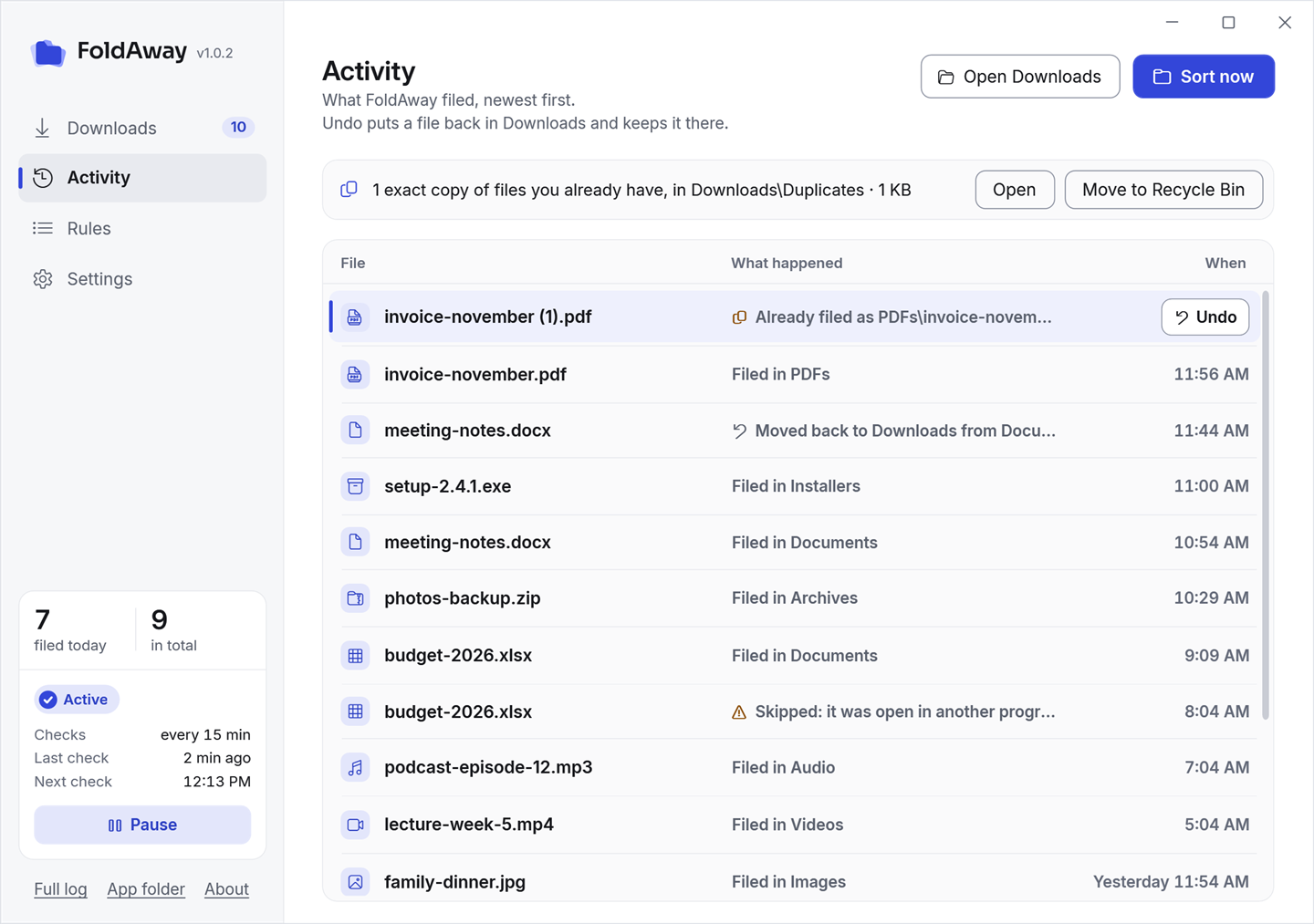
One short check as often as you set, done in under a tenth of a second. Your PC doesn't notice.
Rules
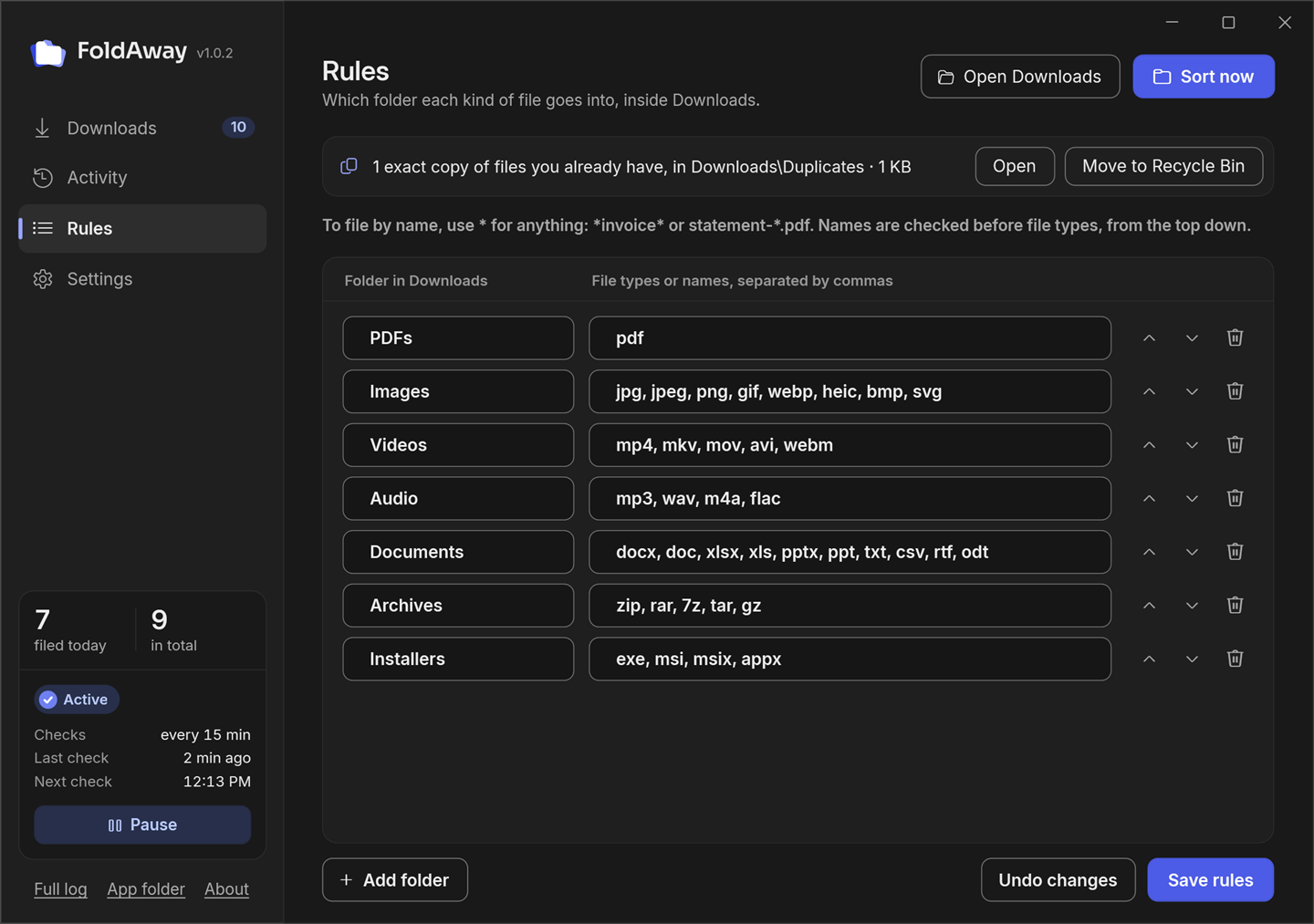
Rules you can read.
Each folder has one line: its name and what goes into it. File by type, or by name with * standing for anything, so *invoice* catches every invoice. Edit them in the app or in a text file.
- One line per folder
- By file type
- By name
- Your own folders
- Your own order
Duplicates, installers and the Desktop
It clears the clutter too.
Download the same file twice and the second copy goes to a Duplicates folder, not next to the first as "name (2)". Old installers, unzipped folders and loose files on the Desktop can be tidied as well. Those three are switches, off to begin with.
- Duplicates folder
- Old installers
- Unzipped folders
- Desktop
What it doesn't do.
Easy to trust with your files.
A program that moves your files should be plain about its limits. Before any version is released, it has to pass automated checks that hold it to these.
- It doesn't go onlineThe app has no account, sends no usage data and makes no update checks of its own: the Microsoft Store keeps it up to date. If you ask for help, Copy details puts the facts on your clipboard and you decide where to paste them.
- It doesn't delete anything outrightWhat it removes goes to the Recycle Bin. Where there is no Recycle Bin, such as a network drive, it leaves the file where it is.
- It doesn't scatter your filesWhat it files goes into folders inside Downloads, or into a Desktop Files folder if you tidy the Desktop too. A folder that is really a link to somewhere else is skipped, unless you say that link is yours.
- It doesn't move a file you're usingA download that is still arriving, or a file open in another program, is left where it is and tried again at the next check.
- It doesn't ask for administrator rightsIt installs from the Microsoft Store for your Windows account only, and uninstalls like any other app.
- It doesn't hide what it didActivity lists every file it filed, newest first, each with an Undo. A file it had to skip is listed with the reason.
Microsoft Store
Be the first to know.
FoldAway is on its way to the Microsoft Store. Once it is there, the Store installs it and keeps it up to date. Leave your email address and we will tell you when it arrives.
Questions
Before it arrives.
The short answers. FoldAway's own window explains the rest as you go.
When can I get it?
As soon as it is in the Microsoft Store. There is no date to share yet, so press Get notified and we will email you when it is there.
Who makes FoldAway?
Abin S. That is also FoldAway's publisher name in the Microsoft Store, so it is the name to look for.
What happens to my email address?
If you leave one, it is used to tell you when FoldAway is in the Microsoft Store and, now and then, for news about it. You can unsubscribe at any time. The app never goes online and never sees your address. The privacy notice has the details.
Where do my files go?
Into folders inside your Downloads folder, such as Downloads\PDFs and Downloads\Images. FoldAway makes a folder the first time it is needed. Kinds of file that aren't in your rules stay where they are.
How long does it wait before filing?
As long as you set. Settings has one number, Check every, which starts at 15 minutes and can be anything from 1 minute to 24 hours. Each check files what has been in Downloads at least that long, so at 15 a file is filed 15 to 30 minutes after it lands. Sort now files everything straight away.
What if I want a file left alone?
Press Undo on it in the Activity list. It goes back to Downloads and stays there until you choose File it. You can also pause FoldAway altogether.
Can I change which folders it uses?
Yes. The Rules page lists each folder and what goes into it. Add your own, rename them, change the order, or file by name with a pattern like *invoice*.
How will updates work?
The Microsoft Store keeps FoldAway up to date, as it does your other Store apps. FoldAway itself never goes online.
How do I remove it?
Like any app from the Microsoft Store: right-click FoldAway in Start and choose Uninstall, or use Settings > Apps. The files it filed stay where they are.